
Inventory
Work steps:
Create the inventory in the management program.
Open the ICS scanning program and wait for the synchronization to finish.
After the data syncronization you will find the inventory on the scanner.
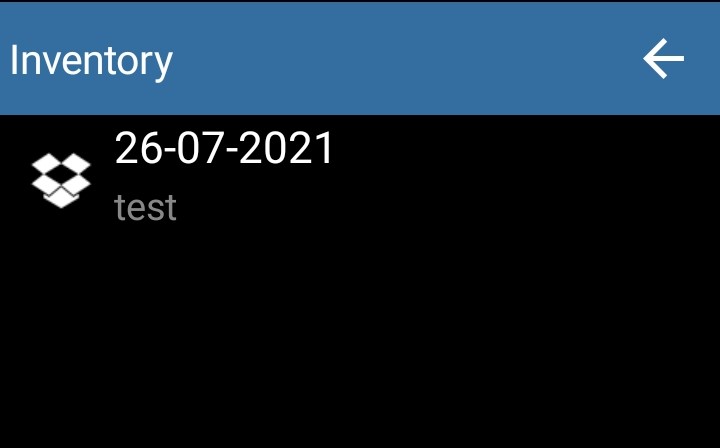
Open the inventory, add the sections and start the scanning process.
The sections are added by pressing the Plus button.
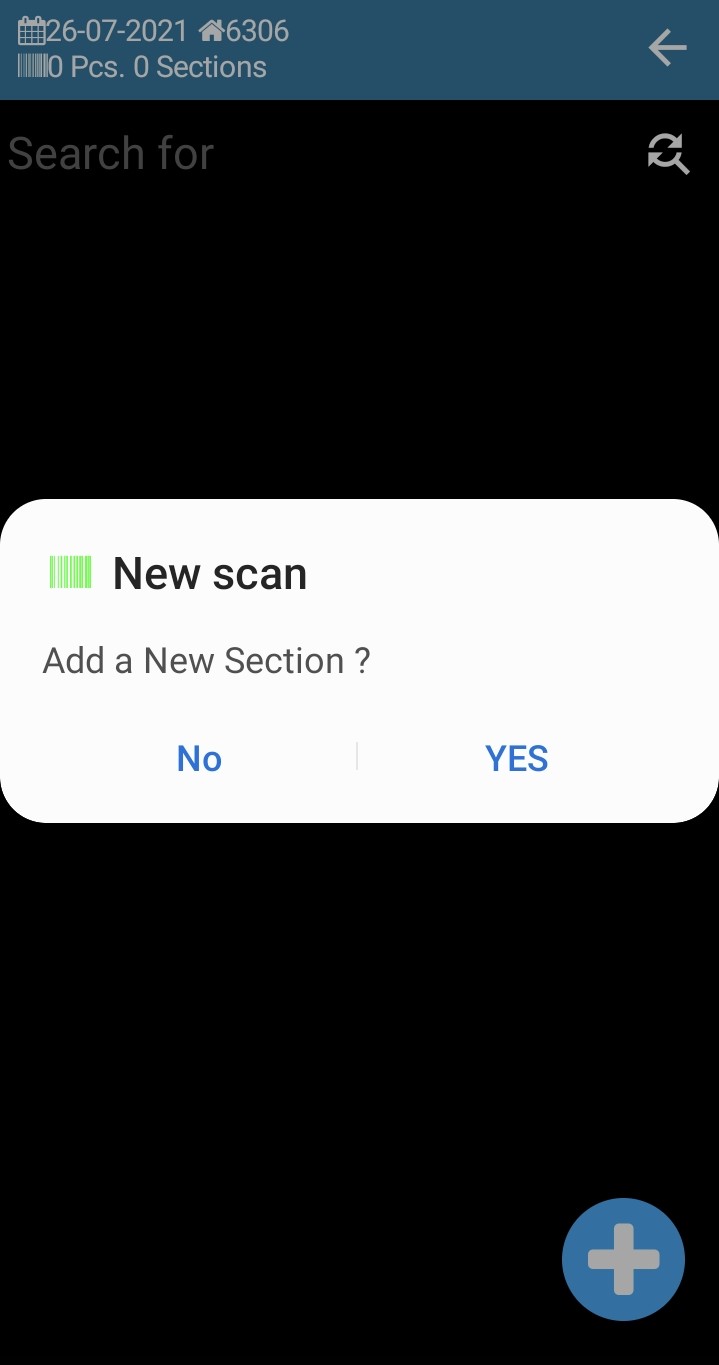
In the inventory window, in the section, we will have the following options visible through symbols
Go to a new section.
*In order to not consume time you can go to a new section directly from the scanning window in which you are. You eliminate the steps - Operations - Save.*
Marking the scanned item as defect.
Erasing the scanned item.
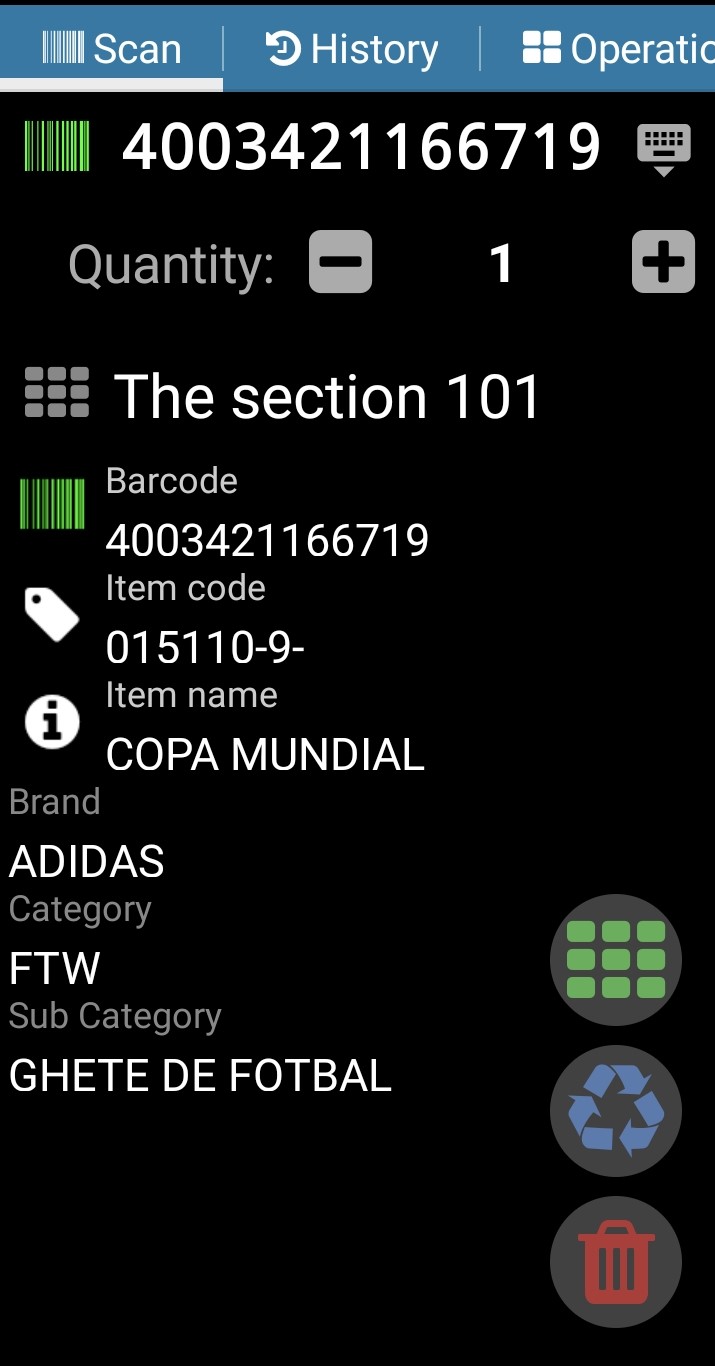
The quantity can be modified with the + or - buttons. You can also modify it by pressing the quantity field and introducing the numbers yourself with the scanners keyboard.
The quantity is modified for the scanned document. The operation is as follows: scan and introduce the quantity, then go to the next item, scan, the quantity will reset to 1.For a new scan the quantity will automatically be 1.
The result of the scan can be checked in the history window.
If you are not sure of the introduced quantity or if the item was erased or marked as defect please check in the history window.
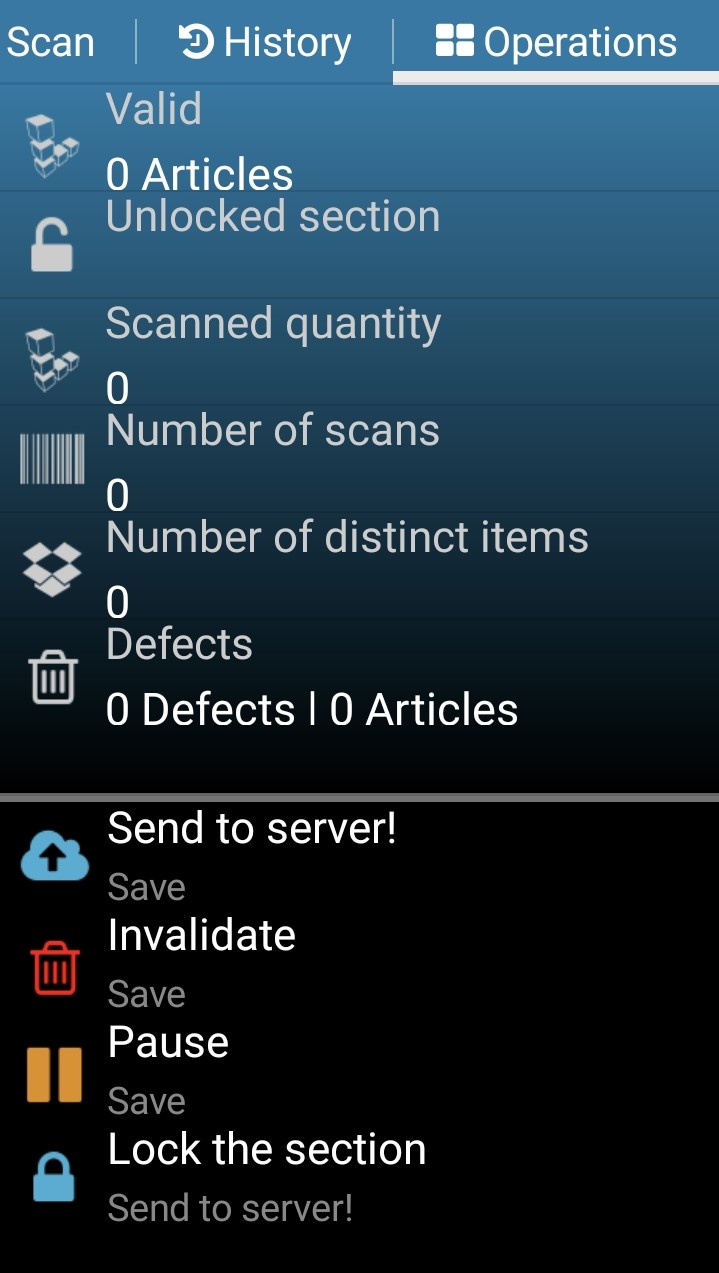
For every section in the Operations window we will have the following options:
- Send to server - The scanned section will be saved and sent to the server.
- Invalidate - Press to invalidate the section. It is used in the case the scan is wrong.
- Pause - The section will be saved. The scan can be resumed later.
- Lock the section - The section is blocked and will be sent to the server, the scanning will not be able to be resumed.
Sending items to the server is done after exiting the ICS Inventory menu.
All created sections will be sent regardless of whether they are blocked or saved.
If the section is saved and the scan will continue later, the rest of the scanned items will be sent to the next synchronization.
Cannot operate scanner during scan transmission.
In short, the inventory procedure is done as such
Make an inventory in Datagate
Do a syncronization and after it select the inventory
Add sections with the blue 'plus' button or after the first one use the green add section from the scan menu.
Scan the items in their specific sections
Check the items and modify them as needed (erase, mark as defect) with the red garbage can.
After it is finished choose the correct option for the section: send to server, invalidate, pause and continue it later or lock the section
We do not recommend creating big inventory sections for it may cause multiple problems, such as:
The program might crash due to the overwhelming size of the data that needs to be sent
The section data will take a long while to be sent to server
If you later find a mistake in a large section it will take a long while to correct it or remake it