Work Method
Scanning in ICS
The scanning menu whether it is from 'Generic Scan' or 'Expedition from Scanner' has the following work sections: Scan, History, Information, Operations.
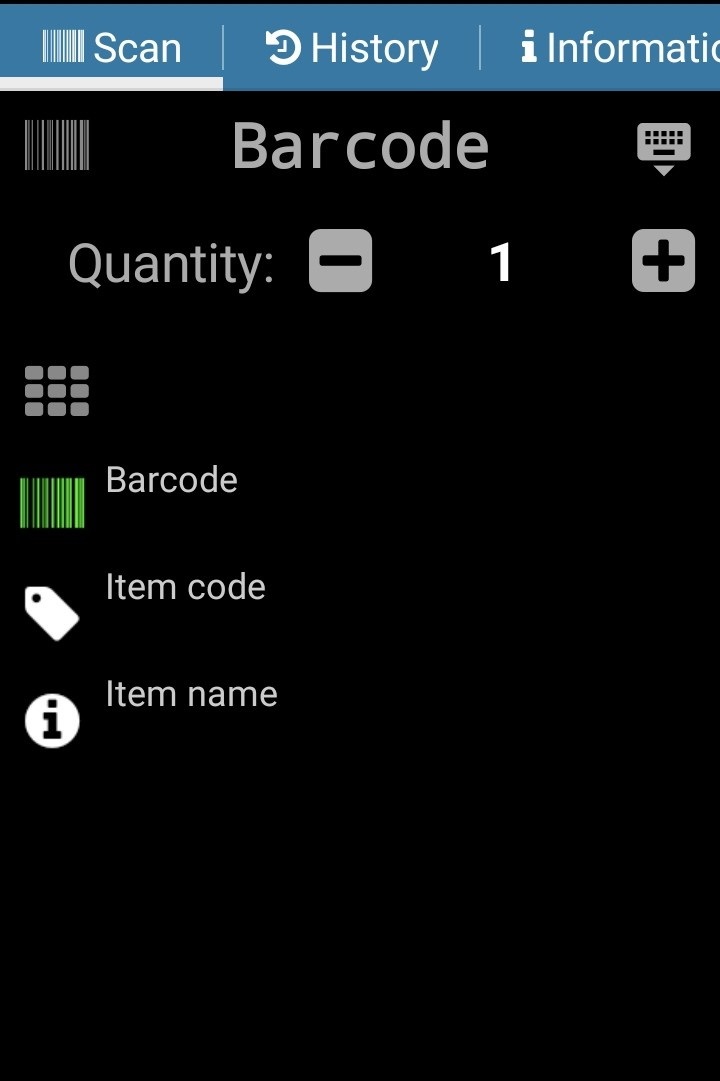
- Scan
To start a new list of scanned items you must first press the plus button on the bottom right of the page.
The items are scanned one after the other. Saving is automated.
You can also add the barcode/item code with the keyboard sign on the top right side of the screen.
For changing the quantity you press the plus or minus buttons near the Quantity. You can also modify it by pressing the quantity field and introducing the numbers yourself with the scanners keyboard.
The quantity is modified for the scanned document. The operation is as follows: scan and introduce the quantity, then go to the next item, scan - the quantity will reset to 1.
For a new scan the quantity will automatically be 1.
If you scan an unknown barcode and the item is not present in the items list, you will hear an error signal.
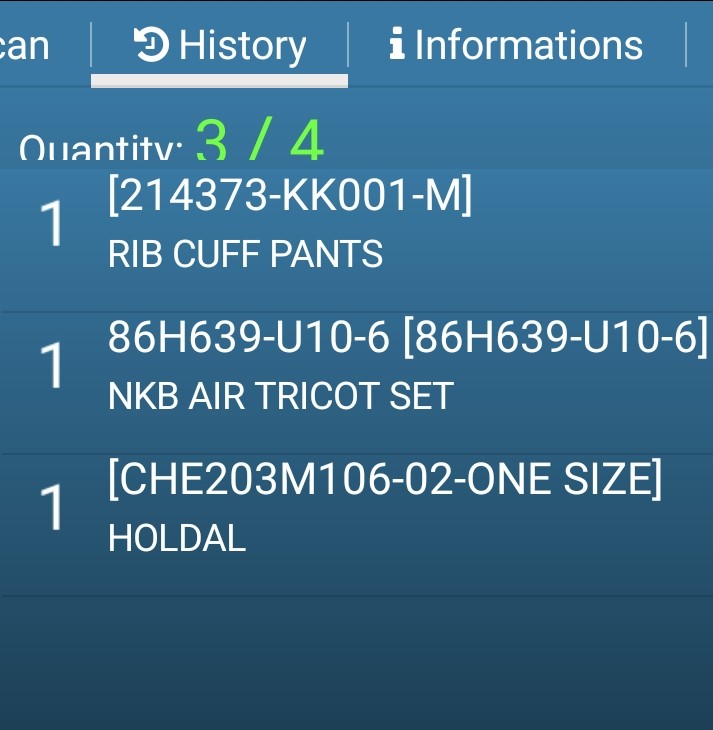
- History - Show items scanned from the order, quantitatively and in detail.
From this window you can erase an item, select the item and follow the instructions on the screen.
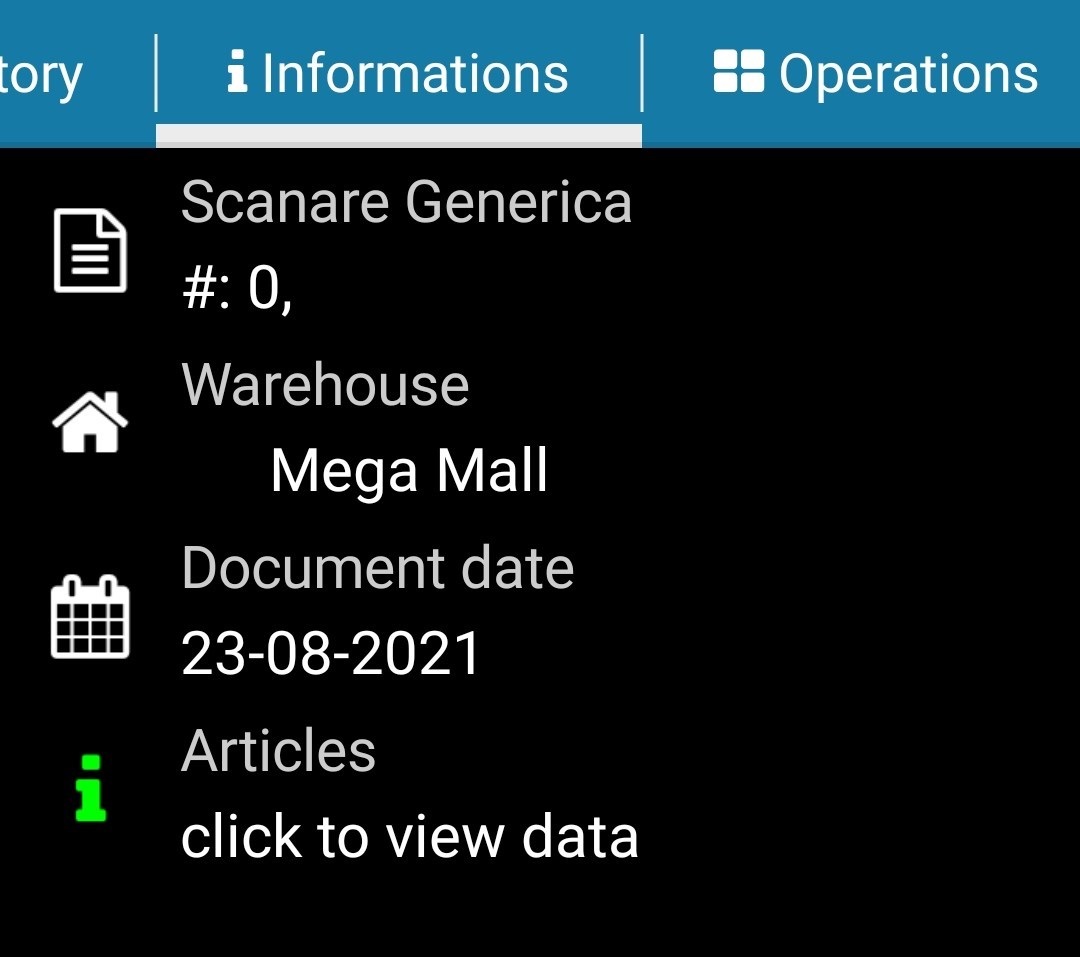
Informations - Displays the informations related to the document.
To see all scanned items, press the Articles key.
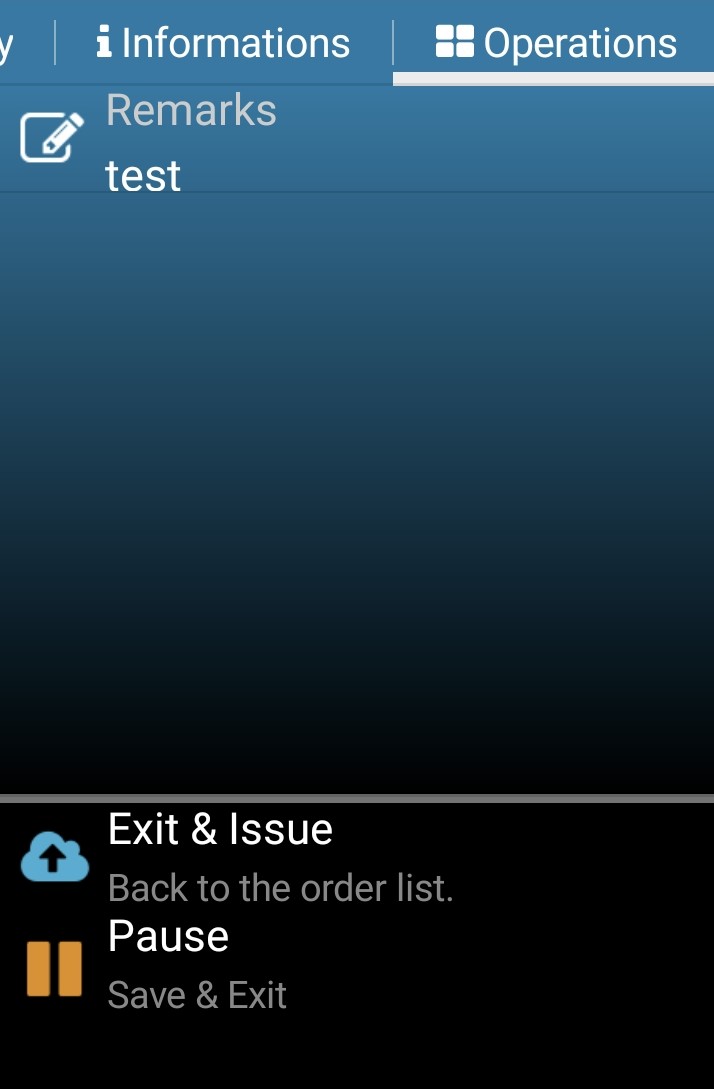
- Operations - saving or sending a document.
Exit and issue - The scanned document will be sent to server.
Pause - The scanned document will be saved. In order to continue the scan of this document, open the document and resume the scan from where you stopped.